
DKIM (DomainKeys Identified Mail) adds a digital signature to your outgoing mail so receivers can confirm the message really came from your domain and was not changed along the way. DMARCER does not create or hold your private keys. Instead, it keeps an eye on which selectors are actually signing mail for your domain, checks the matching public keys in DNS, and flags anything that is missing, revoked or weak so you can put it right before your delivery suffers.
How DMARCER finds your selectors
You do not have to tell DMARCER which DKIM selectors you use. It works them out for you: a daily background check reads the DMARC reports that receivers send in and picks up every selector seen signing on behalf of your domain over the previous 30 days. DMARCER then looks up the public key for each selector in DNS (at {selector}._domainkey.your-domain), reads the record, and works out the key type, the key length, whether the key is in test mode, and whether it has been revoked.
- Because selectors are learned from reports, a domain needs to be verified for ownership and to be receiving DMARC reports before any selectors appear.
- It can take 24 to 48 hours after a domain starts receiving reports for the first selectors to show up.
- DMARCER captures every selector it sees, including ones signed with someone else's domain (for example Microsoft re-signing or a mail forwarder), not just your own keys.
Opening the DKIM panel
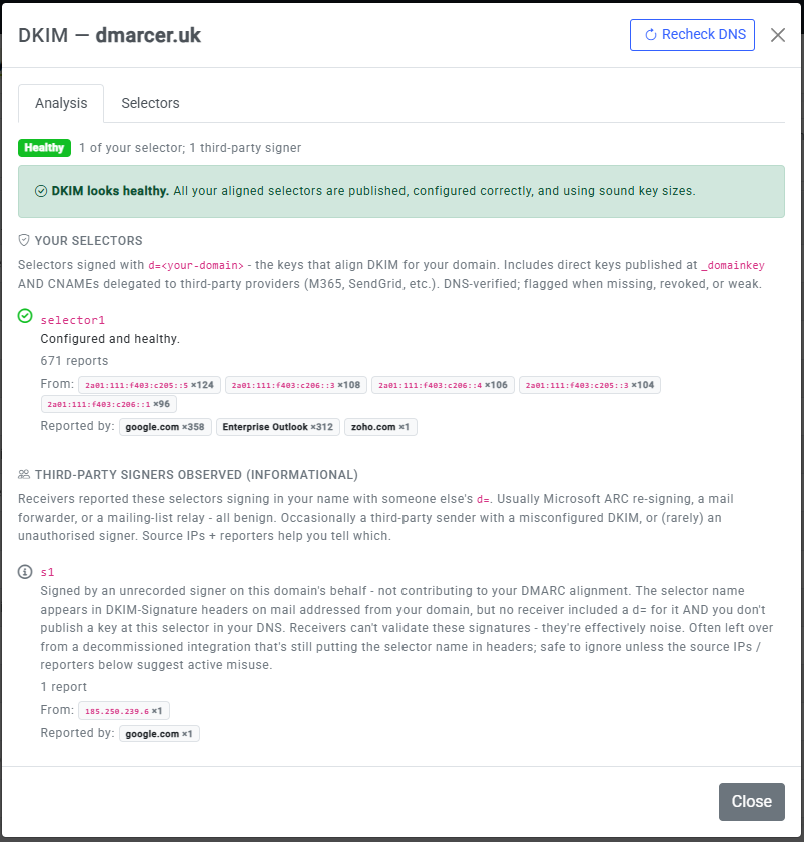
Open the DKIM panel from a domain on the Domain Management page (or from the customer detail page). The panel is titled DKIM followed by the domain name and has two tabs. The Analysis tab shows a health badge and a plain-language headline, then groups the selectors together. The Selectors tab lists every selector seen, with columns for Selector, State, Key, Reports, First seen and Last seen, plus a Raw DNS records section you can open up to see the exact published TXT record.
Your selectors versus third-party signers
The Analysis tab splits selectors into two groups, so a red result only ever appears against keys that are genuinely yours.
- Your selectors: keys signed with d= set to your own domain (or a subdomain). These are the keys that line DKIM up for you, and they include both records you publish directly at _domainkey and CNAMEs you point at a provider such as Microsoft 365 or SendGrid. These are checked in DNS and are flagged if they are missing, revoked or weak.
- Third-party signers observed (for your information): selectors that receivers saw signing in your name but with someone else's d=. This is usually harmless: Microsoft re-signing, a mail forwarder, or a mailing-list relay. The source IPs and reporters shown here help you tell a legitimate sender from a misconfiguration or, rarely, a signer that should not be there. These are not your DKIM, so they are never marked as missing in DNS.
Setting up and publishing DKIM
DMARCER reports on DKIM; the keys themselves are created in your sending platform. The general steps are the same whatever the platform:
- Generate the DKIM keys (or turn DKIM on) in your email platform, for example Microsoft 365 or Google Workspace. The platform gives you either a TXT record or a pair of CNAME records to publish.
- Publish those records at your DNS provider, or let DMARCER add them for you if that provider is connected.
- Use Recheck DNS in the DKIM panel to confirm the selector is detected and valid, rather than waiting for the daily check.
For step-by-step instructions tailored to each email platform, see the Source guides on the main website.
Rechecking after a DNS change
The background check runs once a day, but if you have just published or fixed a record you do not have to wait. The Recheck DNS button at the top of the DKIM panel re-runs the DNS check for every selector on the domain straight away and updates each result in place. A full domain re-check covers DKIM too, re-checking every selector alongside SPF, DMARC, DNSSEC and the rest, then rescoring the domain from the fresh results. Do bear in mind that DNS changes can take a while to spread across the internet, so if a brand-new record still shows as missing, give it some time and recheck again.
What the results mean and common pitfalls
- Selector not found in DNS: the sender is signing with a key that is not published, so receivers will fail DKIM for that mail. Either publish the key (or a CNAME to the provider's key) at the matching _domainkey record, or stop that sender using the selector.
- Public key revoked (p= empty): the published record has an empty p= tag, which receivers have to treat as a failure. If the selector is a CNAME to a provider such as Amazon SES, Microsoft 365 or SendGrid, the provider has revoked the key on their side; reactivate the integration (which usually publishes a fresh key) or remove the CNAME.
- 1024-bit RSA key: this is now out of date, and major receivers are increasingly downgrading or rejecting mail signed with it. Move up to a 2048-bit key before your delivery starts to suffer.
- Test mode (t=y): the record is marked as testing, which tells receivers to be lenient with failures. Remove the t=y flag once you are happy the key is working properly.
- Key not rotated in over a year: the longer a key stays in place, the more damage there could be if a private key ever leaked. Some hosted services (Google Workspace, Microsoft 365) rotate automatically; on-premise or third-party signers may need rotating by hand.
When you do rotate, do it gently: generate the new key under a new selector name, publish its public key, switch the sender over to the new selector, and leave the old record in place for around a week so any mail already on its way still passes. Only then retire the old selector by setting its p= tag to empty, rather than deleting the record outright.