
Connecting ICUK lets DMARCER work with your ICUK reseller account on your behalf. Once you are connected, DMARCER can read your live DNS records, find the domains you host at ICUK, and publish the email-security records you approve (SPF, DMARC, MTA-STS and DKIM), as well as manage DNSSEC for you. This article walks you through adding the connection, explains what each option does, and covers the things that most often catch people out.
What the ICUK connection does
DMARCER signs in to ICUK using your reseller credentials and then works with your domains. In practice, it can:
- List the domains in your ICUK account and work out which ones ICUK actually looks after.
- Read the current DNS records for a domain, so you can see what is published before you change anything.
- Add the validation TXT records, then create or update your DMARC and SPF records once you confirm.
- Publish the CNAME and TXT records needed for MTA-STS and DKIM.
- Turn DNSSEC on or off for a domain (ICUK generates the keys and publishes the matching records for you).
Your credentials are encrypted while stored and are never written into our logs. DMARCER will never delete records you did not ask it to change: where ICUK only accepts an update to the whole zone at once, DMARCER reads what is there first and writes every other record back exactly as it was.
Before you start
- An ICUK reseller account with admin access to the contract panel, so you can create an API user.
- That API user needs to be able to manage the DNS for the domains you want DMARCER to look after.
- A friendly name for the connection. This is how you tell this integration apart from your others, and it appears next to every change in your history.
Create an API user in ICUK
DMARCER connects using a dedicated ICUK API user rather than your main login. This keeps its access limited to what it needs and makes it easy to switch off later. Please create one in ICUK before you add the integration:
- In ICUK, open your contract panel and go to Admin, then API Accounts.
- Click New API User and set a username and key (the key acts as the password). Make a note of both, as you will enter them into DMARCER in the next step.
- On that account's row in the API Accounts table, click Permissions, set the Domain Module to Read / Write, and save the change.
- Open IP Restrictions, add the IP address 95.154.230.13/32, and click Create. This lets the DMARCER servers reach the ICUK API.
Adding the integration
- Go to Integrations and click Add integration.
- At the top of the Add Integration window, choose DNS provider for the type.
- In the provider dropdown, select ICUK.
- Enter a Friendly name (for example, Acme Corp - ICUK).
- Enter the ICUK API username and key you created above (the key goes in the password field).
- Leave Start in TEST mode (recommended) ticked and Sync zones immediately after connecting ticked.
- Click Connect.
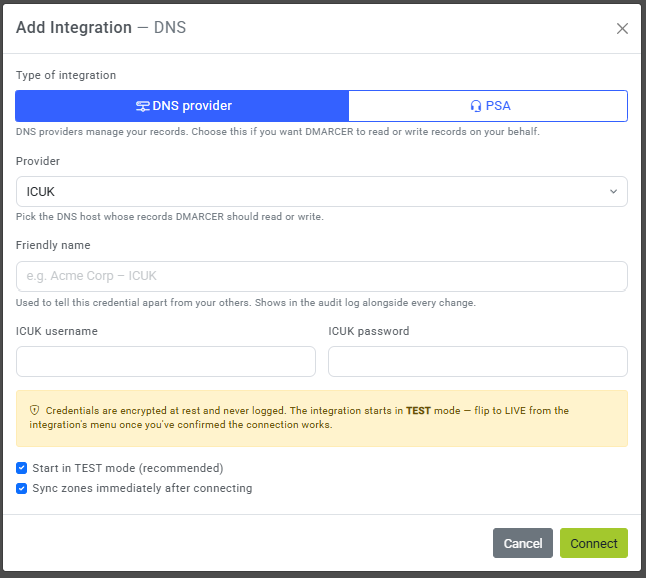
When you click Connect, DMARCER safely stores your credentials, quickly checks them against ICUK to confirm they work, and (if you left zone sync ticked) finds the domains in your account. If everything is correct, you will see a message confirming it connected to the ICUK platform, along with the number of domains synced.
What the options mean
- Start in TEST mode: while this is on, DMARCER talks to ICUK's TEST environment rather than the live one, so nothing happens to your real DNS while you check everything looks right. This is the recommended place to start.
- Sync zones immediately after connecting: DMARCER fetches your list of domains straight away so they are ready to link. You can also do this later from the integration's menu using Sync zones.
- Friendly name: this is just a label. It has no effect on the connection itself, but it does need to be different from your other ICUK integrations.
Going live and linking domains
A new integration always starts in TEST mode. Once you are happy the connection is working, open the integration's menu and switch it from TEST to LIVE, so that the changes you approve reach your real DNS. After switching, run the connection test again so the status updates.
To start managing records, open Manage zones and links from the integration's menu and link your DMARCER domains to the matching ICUK domains. Each domain can be linked to one DNS provider at a time, so if a domain is already linked somewhere else, DMARCER will tell you where, and you will need to unlink it there first.
How DMARCER sorts your domains
When it syncs, DMARCER looks at each domain in your ICUK account and works out whether it can safely make changes to it. Not every domain in the account is one ICUK actually serves, so understanding the labels helps explain why some are read-only:
- DNS only and local account domains can be changed: ICUK hosts the DNS, so DMARCER can publish changes there.
- External DNS domains are read-only: the domain is in your ICUK account, but its nameservers point at another provider, so DMARCER can read it but any changes would not take effect.
- Ghost domains cannot be changed: ICUK still holds old DNS information, but the domain's nameservers have since been pointed somewhere else. Any change here would update something nobody is looking at, so DMARCER deliberately leaves these alone.
Common pitfalls
- Credentials rejected: if the connection test says sign-in failed, check the API username and key are correct and the API user is active, then use Manage credentials to enter them again.
- Forgotten IP restriction: if your connection is refused even though the credentials look right, check you added 95.154.230.13/32 under IP Restrictions for the API user.
- Missing permission: if DMARCER cannot read or write records, check the API user's Domain Module permission is set to Read / Write.
- Too many requests: ICUK limits how often the API can be called. If you see a message about this, wait a minute and try again, or contact ICUK about your account's limit.
- Nothing changes in TEST mode: this is expected. TEST mode talks to ICUK's TEST environment, so you need to switch the integration to LIVE before any real DNS record is published.
- A domain is missing or read-only: check that ICUK is the DNS provider for it. If the nameservers point elsewhere (an external DNS or ghost domain), connect the provider that actually serves it, or point the nameservers back to ICUK first.
- Already linked elsewhere: a domain can only be linked to one DNS integration at a time. Unlink it from the other integration before linking it to ICUK.