
As an MSP, you add domains on behalf of your clients and link each one to the right customer.
Step 1: Add the domain
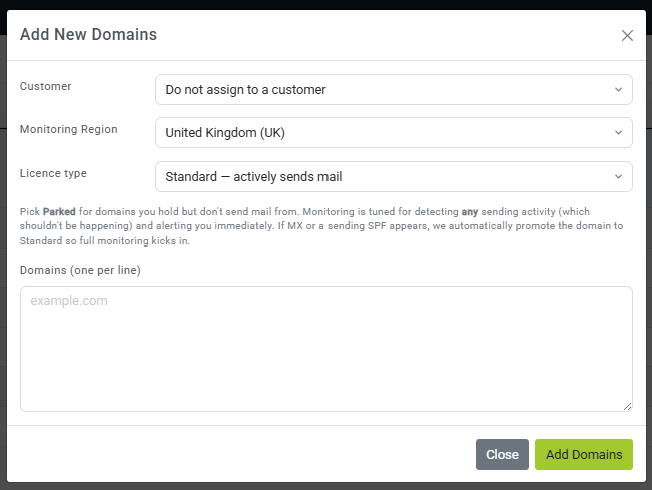
- Open My Domains (or the client record) and click Add domain.
- Assign it to the correct customer.
- Choose the region where you would like us to monitor the domain.
- Choose the licence type (Standard or Parked).
- Enter the domain name and click Add Domains. You can add several domains at once by putting one domain name on each line.
Step 2: Verify ownership
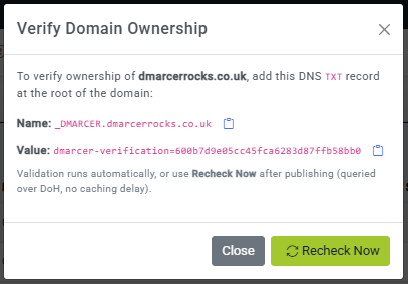
- Once the domain has been added, click Validate on the Domain Management page.
- DMARCER will show you an ownership TXT record to add to the domain's DNS.
- Add it at the client's DNS provider, or apply it automatically if you have connected that provider.
- Click Recheck Now to confirm it has been picked up.
What happens next
Once the domain is verified, you can add your DMARC record to switch on monitoring.
Was this article useful?
Be the first to vote.